Friday, January 30, 2015

How to upgrade your MacBook with an SSD


What you'll need:
Step 1: Prep the SSD
Connect the SSD to your Mac with SATA-to-USB cable.  Once it's connected, launch Disk Utility, and select your drive from the left sidebar.  Then, head to the Erase tab, and click Erase.  No need to change any settings, unless you'd like to give it a new name. This will format the drive and prep it for the next step.
Launch SuperDuper, and set it to clone your Mac's hard drive to the SSD. Then choose Backup All Files, and click Copy Now.  When the process is complete, eject the SSD and shut down your computer.

Step 2: Remove the hard drive
Begin by removing your MacBook's back cover.  There are 10 screws in total, including three longer ones. To remove the hard drive, use the regular screwdriver to unscrew the two black screws belonging to the bracket securing the hard drive.  Remove the bracket and set it aside.
Gently lift the hard drive.  You'll see that a ribbon is attached to one end.  Carefully wiggle the connector -- not the ribbon itself -- to disconnect it.  Remove the four torx screws attached to the hard drive and set aside.

Step 3: Install the SSD
Grab the SSD and screw in the four torx screws you removed from the hard drive. Then attach the ribbon to the SSD, and insert the drive in the same configuration as the previous drive.  Re-attach the bracket. And finally, replace the back cover using the 10 screws.  Now turn on your computer. It may take a couple of extra seconds as it gets acquainted with the new drive, but starting up your computer will be much faster than the in past.

http://www.cnet.com/how-to/upgrade-your-macbook-install-ssd-hard-drive/

Monday, December 29, 2014

How To Easily Mount Drives At Startup


PySDM is a GUI to manager fstab (/etc/fstab) and allows customizing hard disk mountpoints, creating dynamic udev rules, etc.   Use this handy guide to ensure you have auto mounted drives at startup.

Sunday, December 28, 2014

How To Update Flash Player


If you find that your version of Adobe Flash is out of date try this:

sudo apt-get --reinstall install flashplugin-installer

Thursday, December 25, 2014

How many GNU/Linux users are needed to change a light bulb?

  • 1 to post a thread in a mailing list telling the bulb has burnt.
  • 1 to suggest to try to turn the lamp on through command lines.
  • 1 to complain that the user broke the thread.
  • 1 to ask what new bulb will he install.
  • 1 to advice that we shouldn't use the word burn for meaning a broken lightbulb, because it would mean that the bulb was set on fire and that it would be right to say that the bulb broke due to an excess of electrical current.
  • 25 to suggest to install all the kinds of existing and imaginable lightbulbs.
  • 5 who say that the burnt bulb is an upstream issue that doesn't belong to the distro. There's an open bug on the bulb's developer mail list.
  • 1 noob to suggest to install a Microsoft lightbulb.
  • 250 to flood the noob's mail address.
  • 300 to say that a Microsoft lightbulb would turn blue and that you'd had to reboot continuously to get back to normal.
  • 1 former GNU/Linux user who http://www.gnu.org/fun/jokes/users-lightbulb.html
    http://www.gnu.org/fun/jokes/users-lightbulb.html
    still frequents the forum, to suggest to install an Apple iBulb, which has a fresh and innovating design and it costs $250.
  • 20 to say that iBulbs aren't free, and that they have less functions than a 20 times cheaper standard lightbulb.
  • 15 to suggest to install a national lightbulb.
  • 30 to say that national lightbulbs are crippled remasters of foreign lightbulbs and that they don't bring anything new.
  • 23 to argue if it must be a white or a transparent bulb.
  • 1 to remind everyone that the right name is GNU/Lightbulb.
  • 1 to say that lightbulbs are a Winbugs users thing and that real GNU/Linux users aren't afraid of the dark.
  • 1 to announce finally which will be the model of the installed bulb.
  • 217 to discard the chosen model and suggest another.
  • 6 to complain that the chosen lightbulb has proprietary elements, and that another should be used.
  • 20 to say that a 100% free bulb, isn't compatible with the lamp switch.
  • The same previous 6, to suggest to change the switch for a compatible one.
  • 1 to yell out: “STOP ARGUING AND CHANGE THAT LIGHTBULB FOR GOD'S SAKE!”
  • 350 to ask the previous user what God is he talking about, and that if he has scientific proofs of His existence.
  • 1 to explain how electricity works and why a light bulb is inefficient.
  • 1 to say that we can't trust in corporation-made bulbs and that we should trust in community-made bulbs.
  • 1 to post a link to an ODF file explaining how to build a lightbulb from scratch.
  • 14 to complain about the format of the previous file and asking to send it in txt or LaTeX.
  • 5 to say that they didn't like the taken decision and that they'll fork the house's electric installation and install a better lamp.
  • 1 to post a series of commands to put to change the lightbulb.
  • 1 to comment that he executed the commands and had an error message.
  • 1 to advice that the commands must be executed as root.
And finally:
  • The father of the first user, who while everyone was discussing, went to the shop and bought the cheapest lightbulb.

Disclaimer

The joke on this page was mailed to the FSF by its author Andre Machado.

http://www.gnu.org/fun/jokes/users-lightbulb.html

Wednesday, September 24, 2014

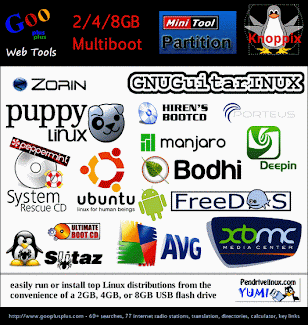
USB Multiboot Collection - Gooplusplus / YUMI

http://www.gooplusplus.com/multiboot-collections/

Collections of YUMI-based Multiboot 2/4/8GB Instructions and Documentation

http://www.gooplusplus.com/multiboot-collections/

Tuesday, July 8, 2014

The Big Byte: Linux Printer Drivers - Fuji Xerox DocuPrint P255 dw


Thanks to "The Big Byte" Blog its possible to setup a Fuji Xerox DocuPrint P255 DW under Linux.  You'll need to download the PPD file after setting the printer up on the network.